Microsoft Excel Expert

Terri Blackwell
$14.99 / mo
$99.99 / year with a 7-day free trial
The Microsoft Excel Expert Training course is designed to provide comprehensive training on the advanced features and functionalities of Microsoft Excel, a powerful spreadsheet application widely used in various industries. This course is suitable for individuals who have a solid foundation in Excel and want to expand their skills to an expert level.
By the end of the Microsoft Excel Expert Training course, participants will have acquired advanced skills and knowledge in Excel, empowering them to effectively analyze and manipulate data, automate tasks, create interactive reports, and collaborate efficiently, making them highly proficient Excel users. For group/class purchases please contact us.
What you’ll need to complete this course:
1. The computer software to follow along with the lessons.
2. Access to the internet and a browser to watch our videos online.
3. A Google Drive or Microsoft OneDrive account to access the course resources.
Terri Blackwell is a certified Microsoft Office Specialist and has taught Microsoft Office for more than 20 years. She has helped learners of all ages master Microsoft Office packages in the workplace and in educational organizations.
Microsoft Excel Expert Certified User Exam
Learn more about the certificationSpanish
|
English
Module 1
This module provides a brief introduction to the course.
Module 2
To build this month’s order sheet, you will edit the Food Sales workbook using advanced formulas. You will apply logical functions to populate new columns that help track inventory, product lead time, reorder needs, and item profitability.
Module 3
As part of your business planning, you will analyze the potential purchase of a new building. Using date and time functions, you will examine acquisition timelines and evaluate payment options based on down payment, interest rate, and loan term using Excel’s financial functions.
Module 4
You will update and complete worksheet data using lookup functions to efficiently pull information from multiple worksheets. After evaluating the data structure, you will choose the most appropriate function—VLOOKUP, HLOOKUP, or XLOOKUP—to avoid manual data entry and reduce errors.
Module 5
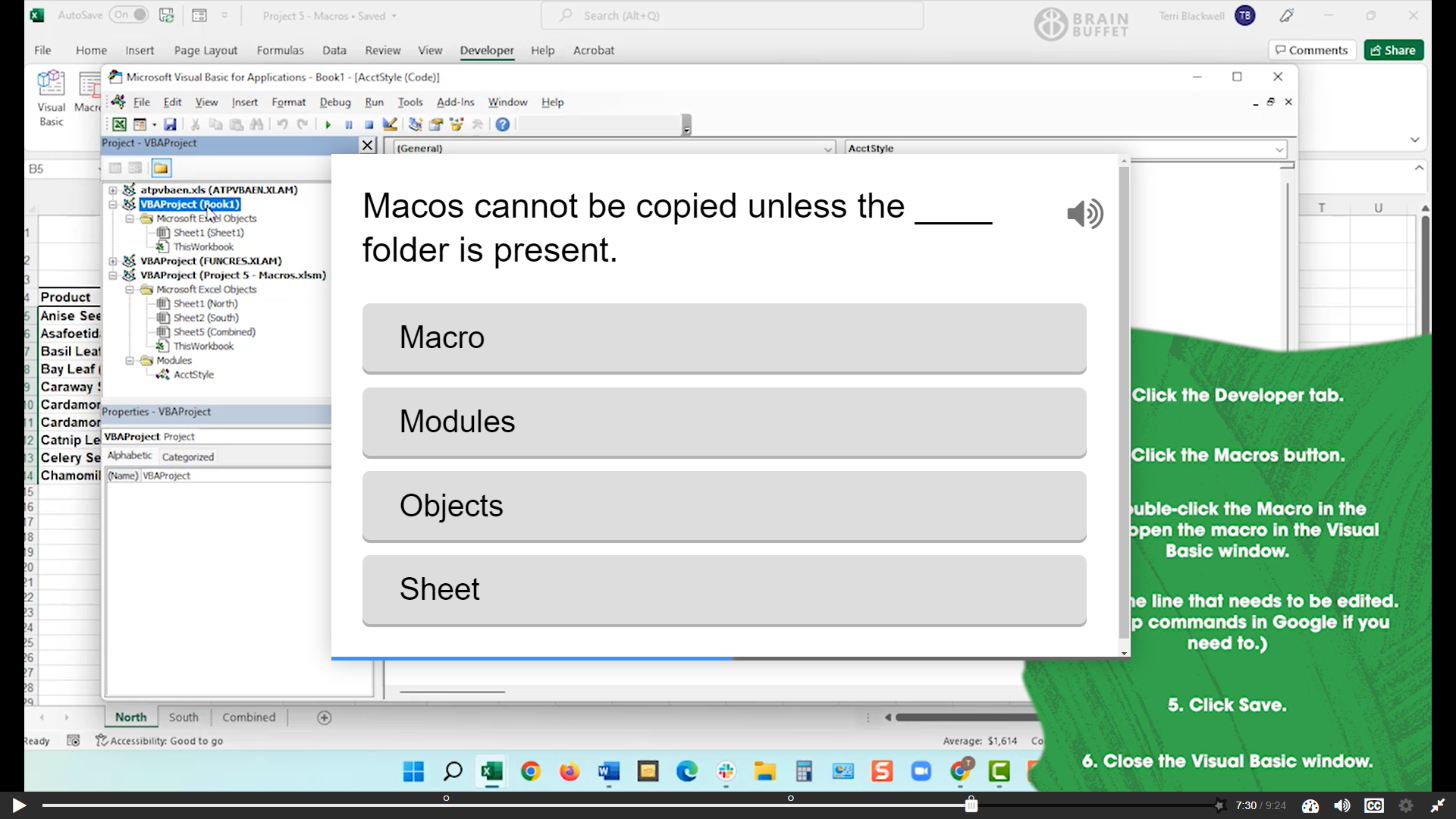
In this module, you will focus on business and financial analysis. You will create scenarios and set financial goals, use formula auditing tools to identify errors, automate processes with macros, and link workbooks to combine data efficiently.
Module 6
To prepare for a staff meeting, you will learn how to quickly highlight trends and problem areas. You will use conditional formatting to emphasize key data, fill options to complete tables efficiently, and data validation rules to ensure accuracy and consistency.
Module 7
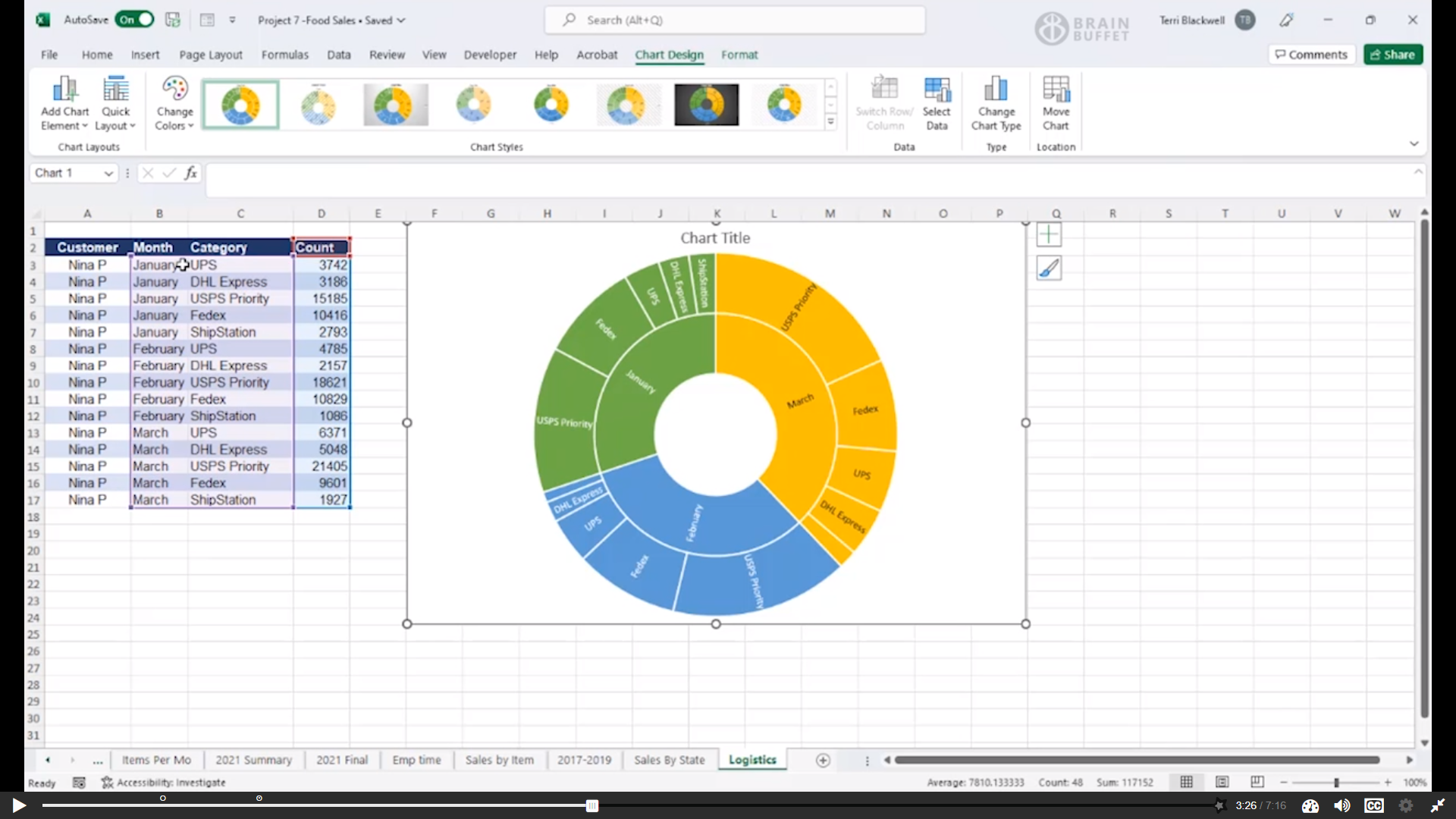
Charts help transform raw data into meaningful visuals. In this module, you will create charts to visualize sales trends, including Combo charts to compare total sales and quantities sold, and Funnel charts to display percentages of totals.
Module 8
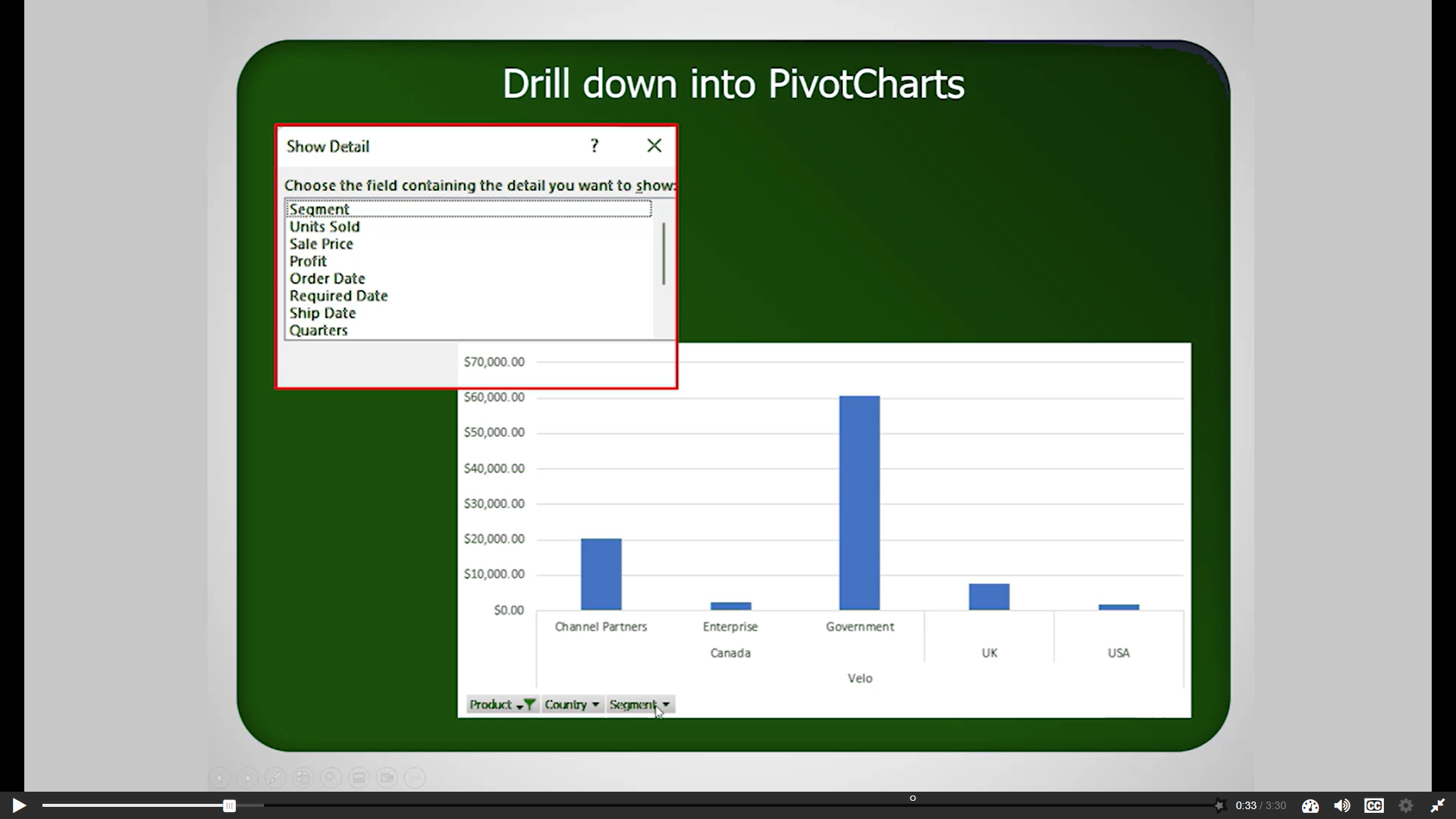
PivotTables and PivotCharts are powerful tools for analyzing data without altering the original dataset. In this module, you will organize data and create PivotTables and PivotCharts to filter, summarize, and analyze information more effectively.
Module 9
Workbook settings play a critical role in protecting and managing Excel files. In this module, you will explore file saving and calculation options, control editing permissions, manage shared workbooks, use comments, and configure language and accessibility settings.